Case Study
“Text Select .click”
A browser extension that helps to select text (including symbols) and quickly copy it — saving users clicks and time.
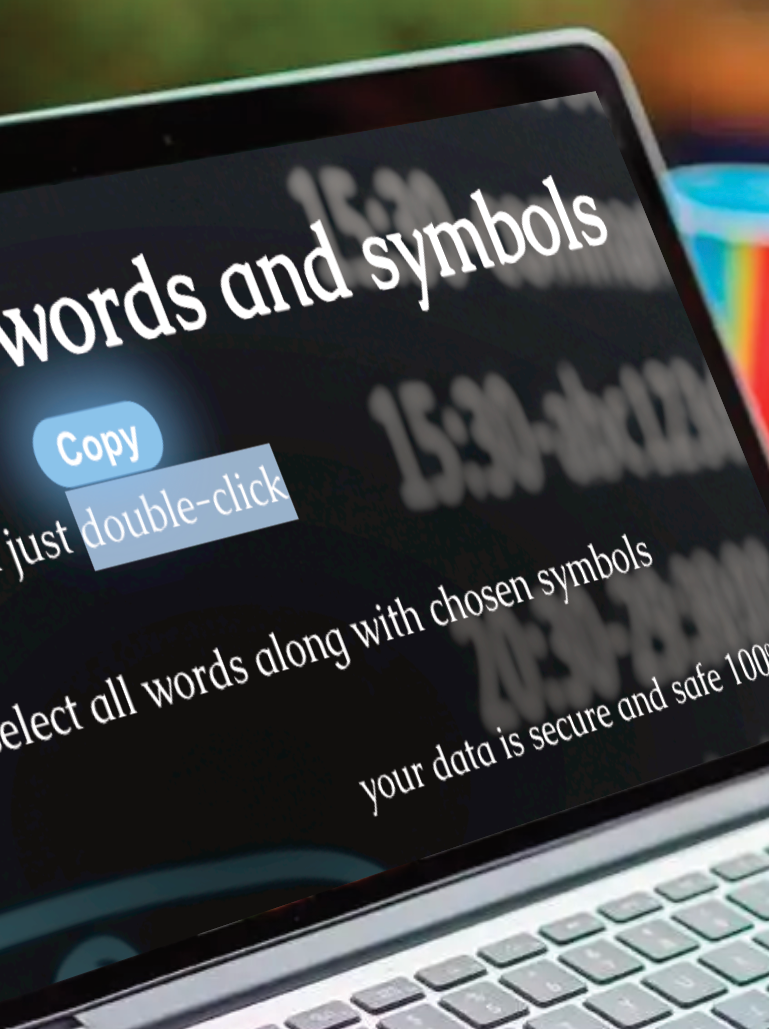
Goal: Make hyphenated or symbol-connected words selectable on double-click, just like normal words — improving everyday text selection efficiency.
Overview
- Role
- UX Designer & Developer
- Tools
- Figma, HTML/CSS, JavaScript
- Duration
- 1 month
- Type
- Personal project
- Year
- 2025
“Text Select .click” was designed and developed to solve a real-life productivity issue I encountered in daily technical support work.
The goal was to remove friction from a tiny but frequent task: selecting and copying text that includes symbols.
Problem & Motivation
While working in technical support, I frequently needed to select and copy text that included symbols — for example, ticket numbers with letters and digits separated by dashes, or technical attributes used in command lines.
By default, neither macOS nor Windows allows users to customize double-click behavior to include symbols in selection, and browsers do not offer such a configuration either. This meant that selecting these strings usually required careful click-and-drag actions, which was slow and error-prone, especially for longer values.
Problem Statement
Users struggle to select symbol-connected text (e.g., hyphenated words, paths, or IDs) with a simple double-click, as default browser behavior breaks at symbols.
Goal
Design a lightweight browser extension that extends native double-click behavior to include symbols — creating a consistent, intuitive, and familiar text selection experience.
I wanted a simple way to double-click and select hyphenated (or symbol-connected words) directly in the browser.
Research & Insights
Before building the extension, I conducted competitive research and informal benchmarking to understand how existing tools handled text selection with symbols.
Key activities
- Platform analysis: Reviewed built-in selection behavior on macOS, Windows, and major browsers (Chrome, Edge, Firefox).
- Forum exploration: Examined user discussions on Microsoft and Reddit forums to identify common pain points — many users expressed frustration when trying to select hyphenated strings or command-line parameters.
Insights
- The problem was cross-platform and recurring — users encountered it regardless of operating system.
- No existing browser solution offered customizable symbol inclusion.
These findings validated the problem scope and shaped the following design process, focusing on enhancing familiar interactions rather than introducing new gestures or tools.
Design Process
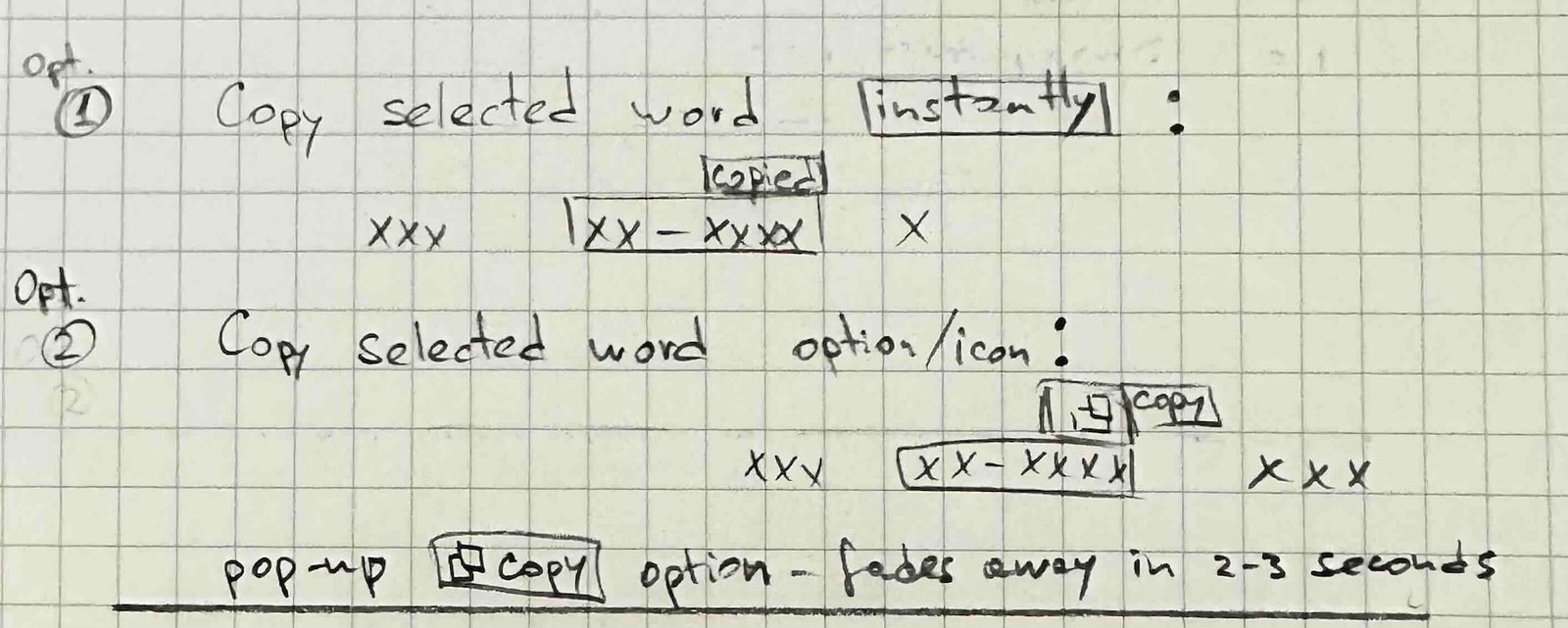
I started with simple sketches in a notebook, exploring different ways to reduce effort when selecting symbol-connected words. The guiding principle was to keep interactions natural and avoid cluttering the interface.
Double-Click Override
Added a new capability to the double-click action, so it can select words separated by symbols.
Contextual Copy Button
Added a floating “Copy” button above the selected text for faster interaction, removing the need to use the right-click drop down menu or keyboard shortcuts.
Hyperlink Selection
Sometimes a user needs only one word from a hyperlink. I added an option where hovering over a word inside a link for a short time selects it without triggering navigation.
Symbol Customization
I added a configuration field where users can define which symbols should be treated as part of the word on double-click. Just to support other scenarios besides hyphens.
Site Exclusion List
Because the extension works at the DOM level, some pages might behave unexpectedly. I added a simple site-exclusion list so users can disable the extension on specific websites if needed.
Notebook Sketches
Early concept sketches exploring different ideas for reducing effort in selecting symbol-connected words.
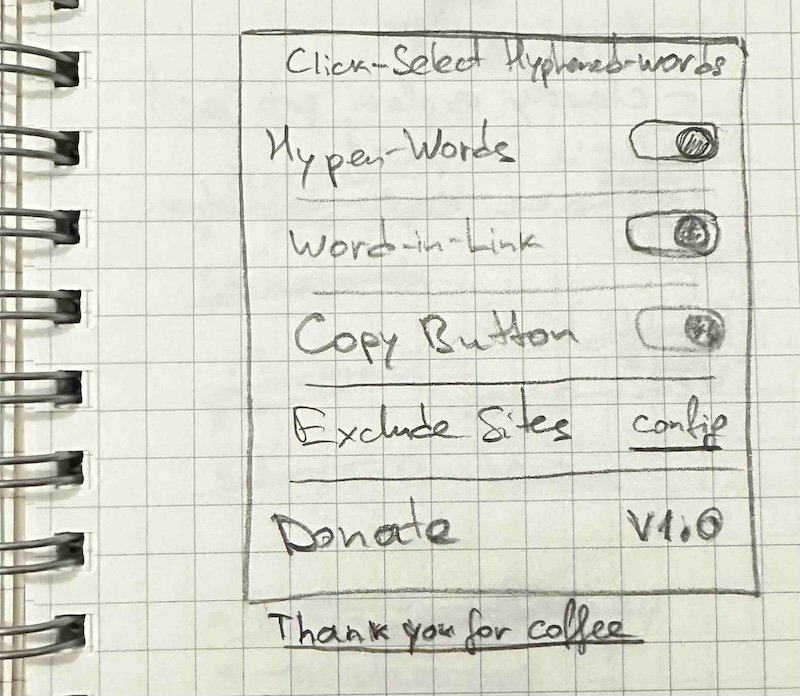
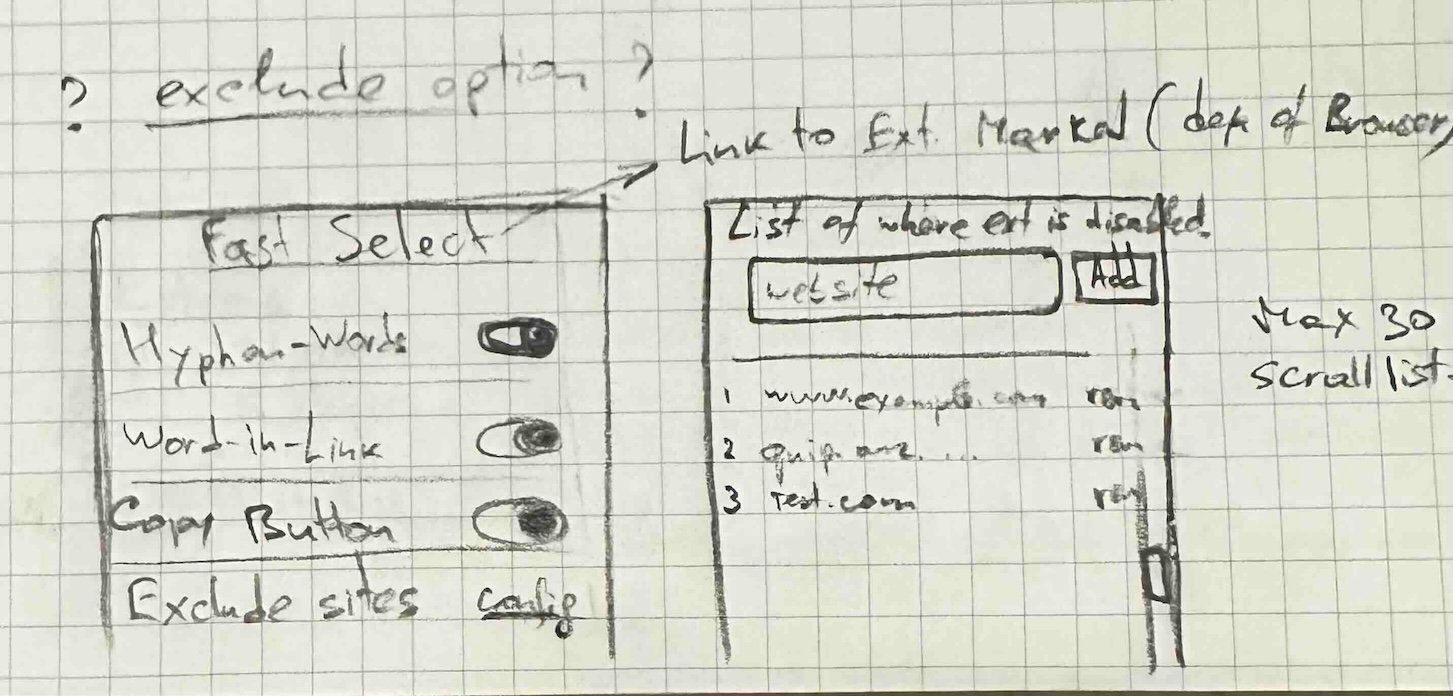
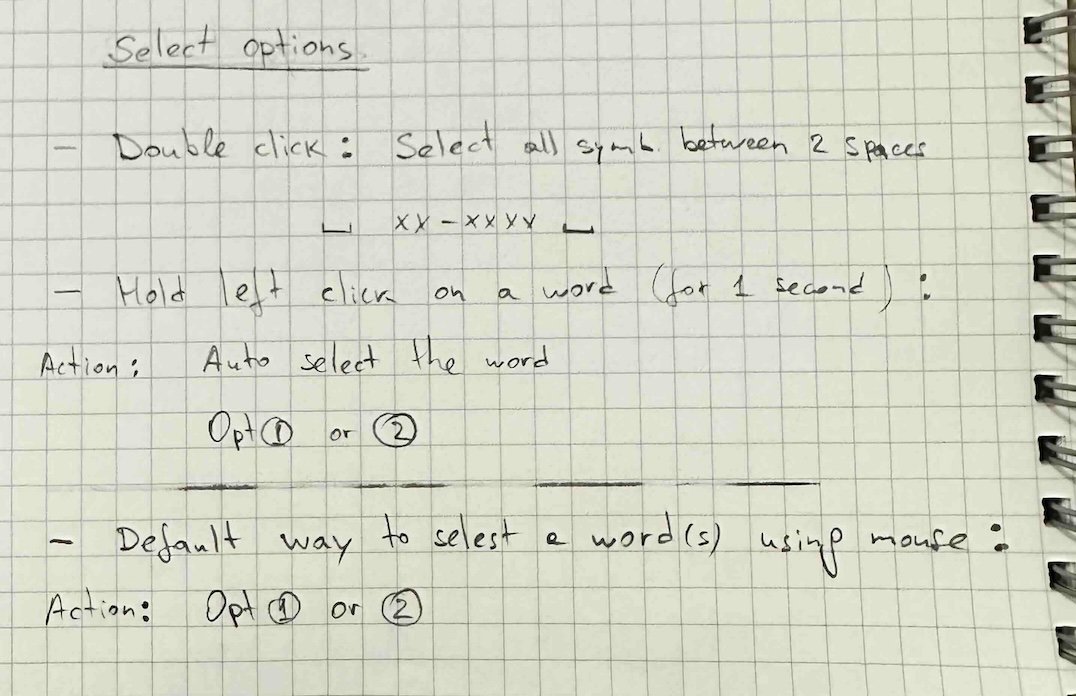
click on a sketch to see the next one
Ideation Decisions
After exploring different design options, I decided to override the default double-click action because users are already familiar with this gesture for selecting text and do not need to learn a new one.
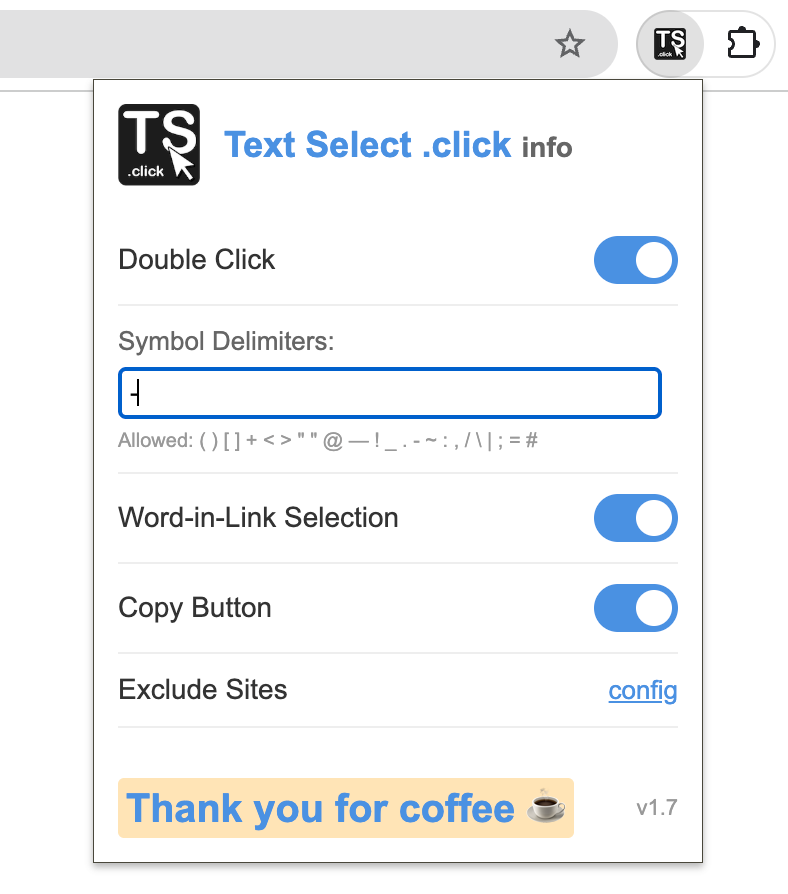
Regarding the popup menu, I chose to place toggles for each of the extension’s functions directly on the first page to make them easier and faster to access.
Final Design & Screenshots
Copy Button
The final design of the Copy button includes these key details:
- Color: Blue background with white “Copy” text. The blue color was chosen intentionally for its high contrast and visual consistency across both light and dark browser themes. This ensures the button remains visible, accessible, and readable in any system appearance — a principle of responsive and inclusive design.
- Hover effect: the text and button slightly enlarges and the button’s style changes — providing clear visual confirmation.
- Click feedback: When clicked, the button changes from blue to green and the text updates from “Copy” to “Copied,” providing clear confirmation.
- Shape: Flat lower edge aligned with the text selection highlight; rounded top corners for a smooth look.
Default state – blue “Copy” button ready to click.
Hover state – button and text enlarge slightly for clear visual feedback.
Clicked state – turns green with “Copied!” text confirming success.
Extension Popup Menu
The extension popup (when pinned in the browser toolbar) gives users control over the extension’s behavior:
- Toggle switches to enable or disable each function (double-click selection, Copy button, hyperlink selection).
- Symbol configuration field where users can define which symbols are treated as part of the word.
- Site exclusion list for adding or removing websites where the extension should not run.
- Extension name link that points to the project website for more information.
Test
I conducted usability tests with my colleagues to ensure they could easily access the Copy button and other functions of the extension.
Extension Emulator
This section demonstrates limited “Text Select .click” extension functions.
Only function “Double click” (just for hyphenated words) and “Copy” button are presented.
Enable/Disable functions
Results & Metrics
The extension is available across major browsers and shows steady usage from people who encounter this problem in their daily work.
| Platform | Total installs (approx.) | Daily active users (approx.) |
|---|---|---|
| Chrome | ~100 | ~25 |
| Edge | ~80 | ~30 |
| Firefox | ~30 | ~10 |
In total, the extension has reached over 200 installs with a healthy base of active daily users, showing that the solution is useful and regularly relied on.
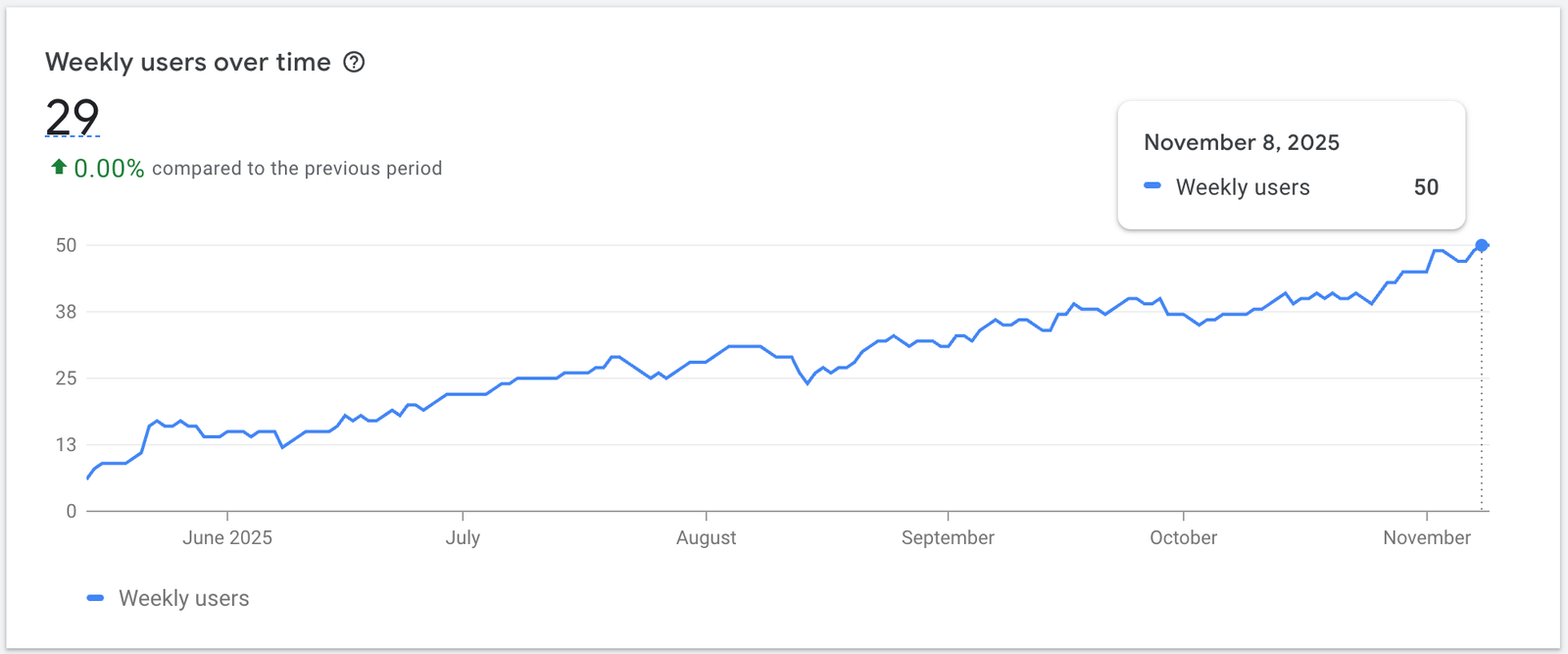
Chrome – weekly active users growth trend.
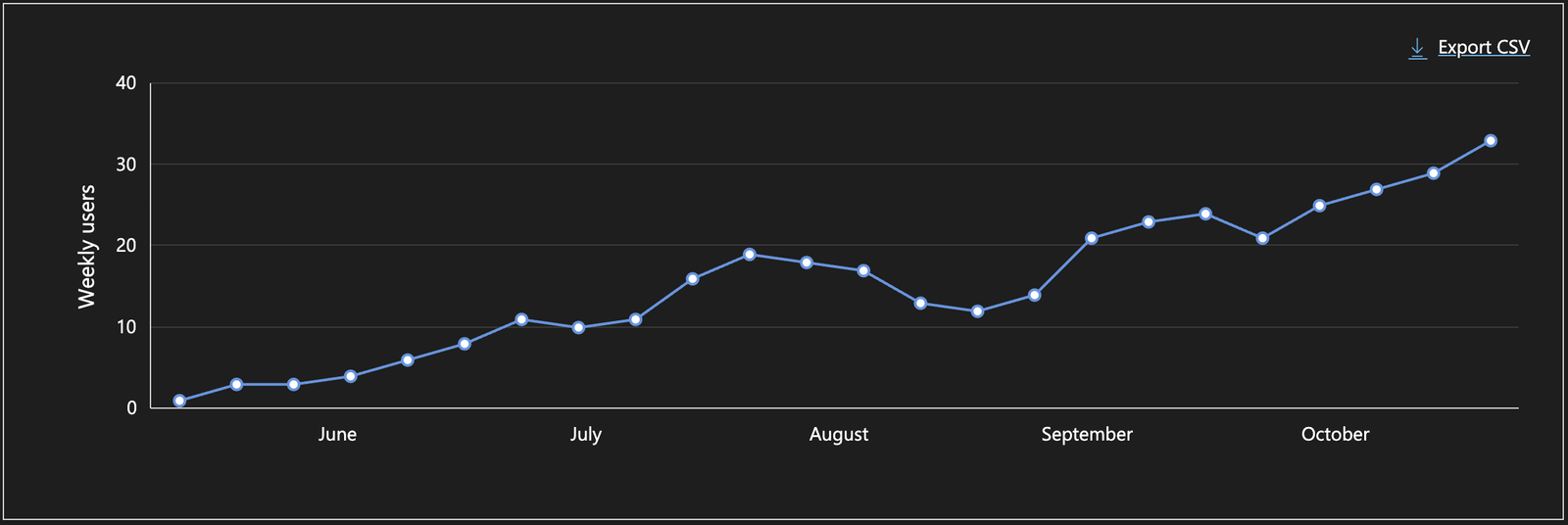
Edge – weekly active users growth trend.
Reflection & Learnings
This project taught me that keeping the tool simple helps people use it without thinking too much.
While testing, I saw that it didn’t always work the same way. Fixing those issues showed me how important it is to keep testing and improving.
Even simple designs can take a lot of work behind the scenes to make them feel easy to use.
Conclusion & Next Steps
Moving forward, I plan to keep tracking usage metrics and gathering user feedback through store reviews and direct communication. These insights will drive an iterative design process focused on improving usability and stability across complex web environments.
This project remains an ongoing journey in user-centered design, where each improvement is guided by real-world behavior and continuous testing.